Beyond The Spectrum

Social Stories

Beyond The Spectrum

Social Stories

Joining an online Beyond The Spectrum workshop

Before you join the workshop

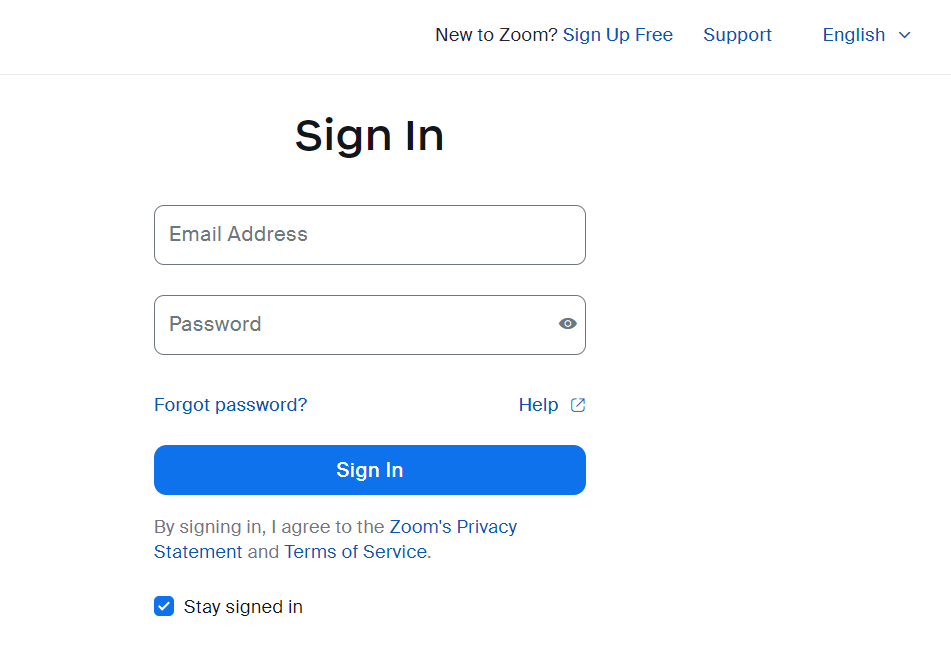
Social stories image 1 Zoom sign in

Beyond the Spectrum uses Zoom to deliver our online writing workshops. Zoom is an online video calling platform that allows us to meet online.


You don’t need to have a Zoom account or download anything to join, but you can if you want to.

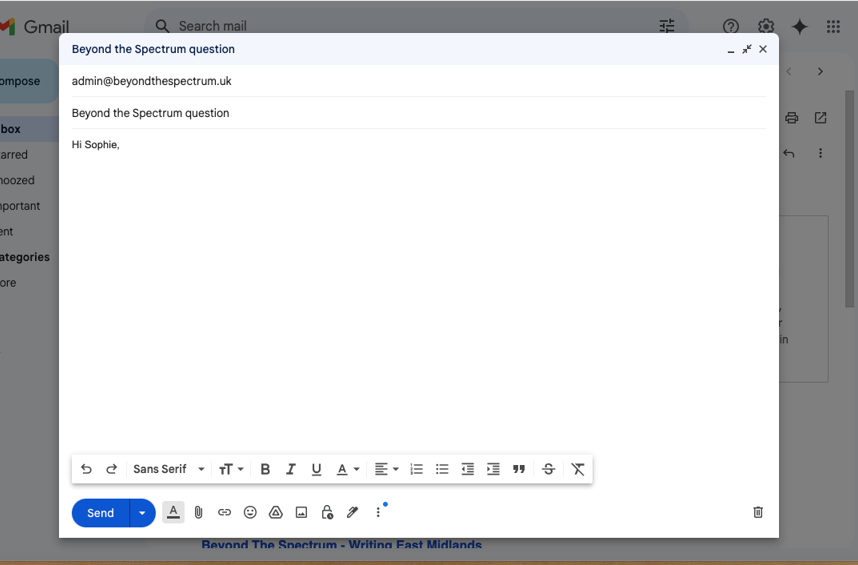
If you’re worried about anything before the session, you can email Sophie at admin@beyondthespectrum.uk and she will get back to you as soon as possible.

Social story image 2 email BTS team
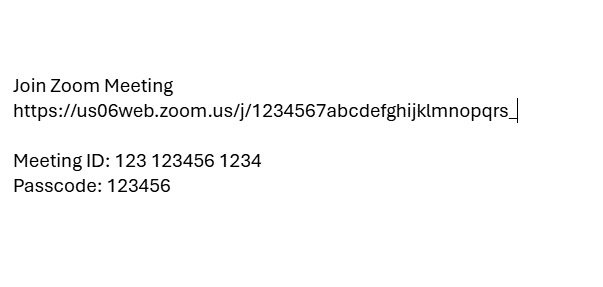
Social story image 3 Zoom link

Before each session, you will receive an email reminder for your group, so don’t worry about remembering all of the dates.

This email will contain a link to join the workshop. This link will usually stay the same, but you will be sent it again in every reminder and we will let you know if it changes. To join, simply click on the link when it’s time for your workshop.

It will also include a workshop plan, so you know what to expect from the session.

Attending a workshop

When you click on the link you should enter the waiting room. If you don’t have a Zoom account it might ask you to enter your name – please make it clear who you are (and this be consistent) so our shadow writer can fill in the register.


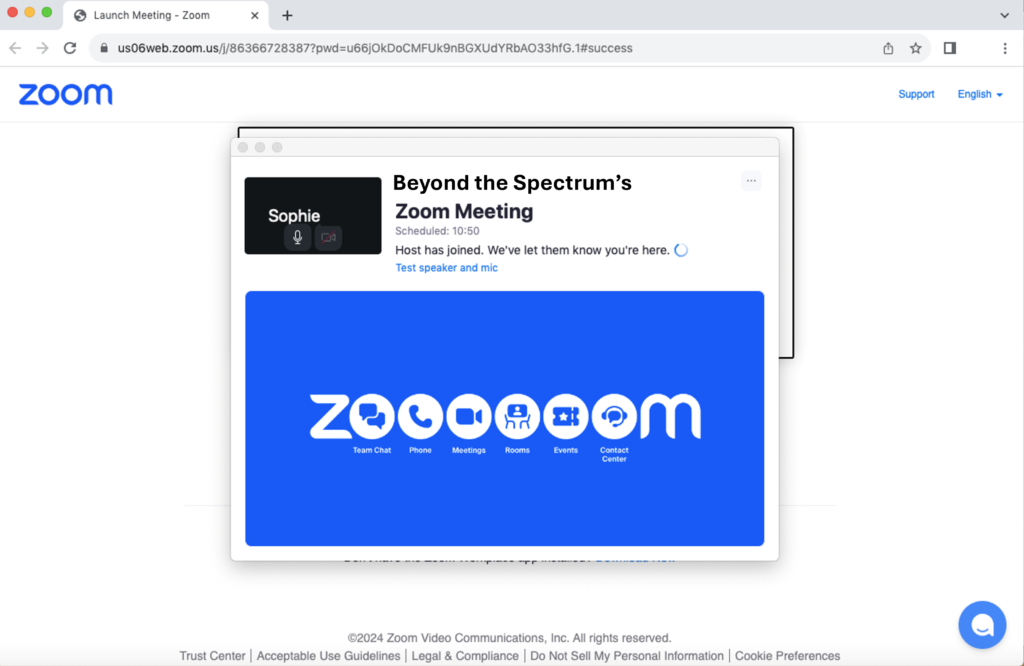
Your lead writer will be able to see you are in the waiting room and will let you in when it’s time for your workshop to start.

Social story image 4 Zoom waiting room
Social story image 5 Zoom joining screen

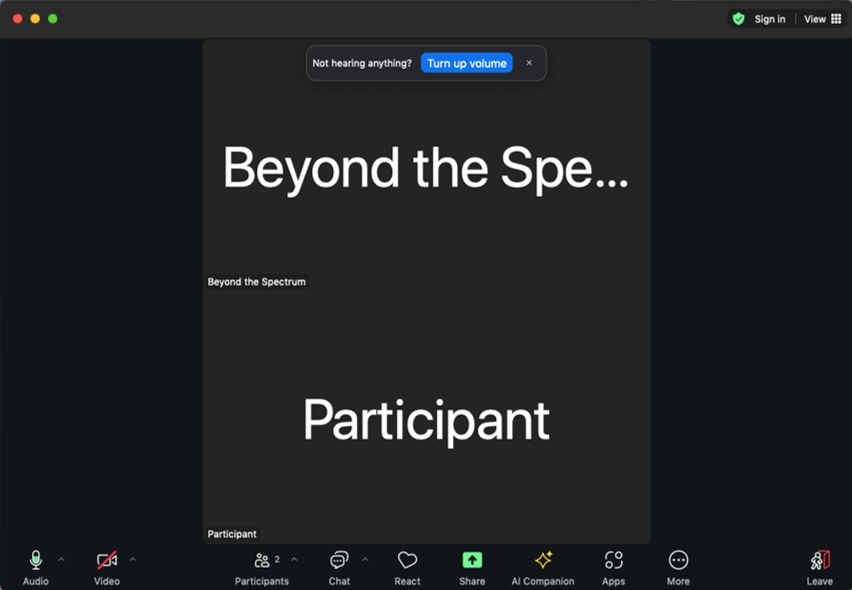
When you join, you will see a screen that looks something like this. You will see your lead writer, shadow writer and all the participants in boxes on the screen. Some people might have their cameras off and some might have them on.

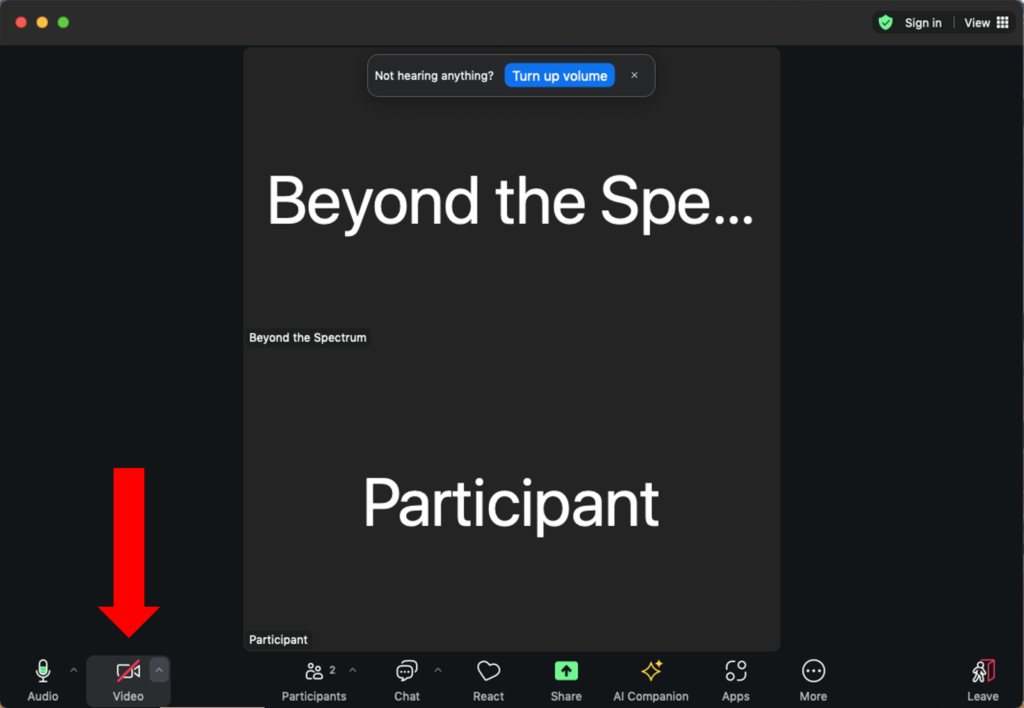
You can use this camera button to decide if you want your camera off or on. This is completely your decision and there is never any pressure to do it one way or the other. You can turn it off or on whenever you like.

Social story image 6 Zoom camera
Social story image 7 Zoom blur background

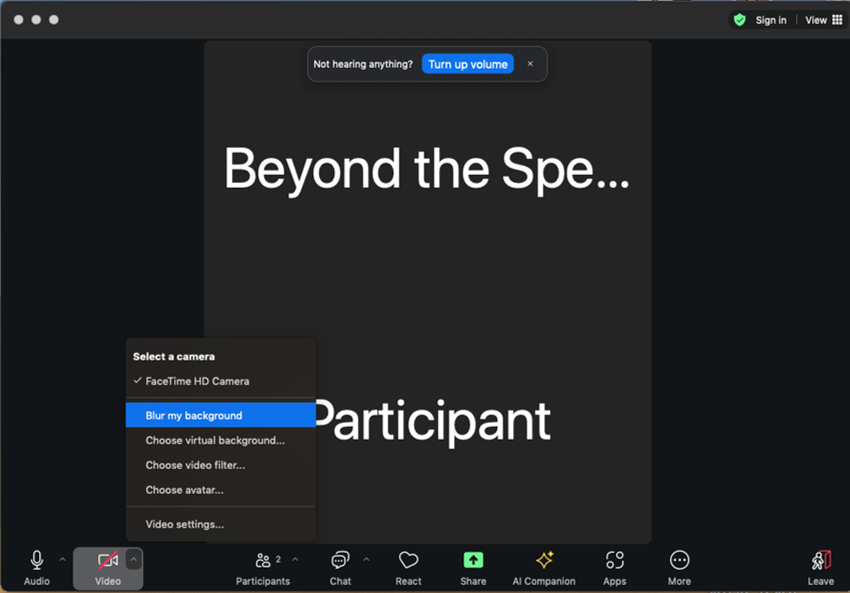
If you want to have your camera on but don’t want everyone to see your background, you can blur your background. To do this, click the little arrow next to the camera button and select ‘Blur my background.’

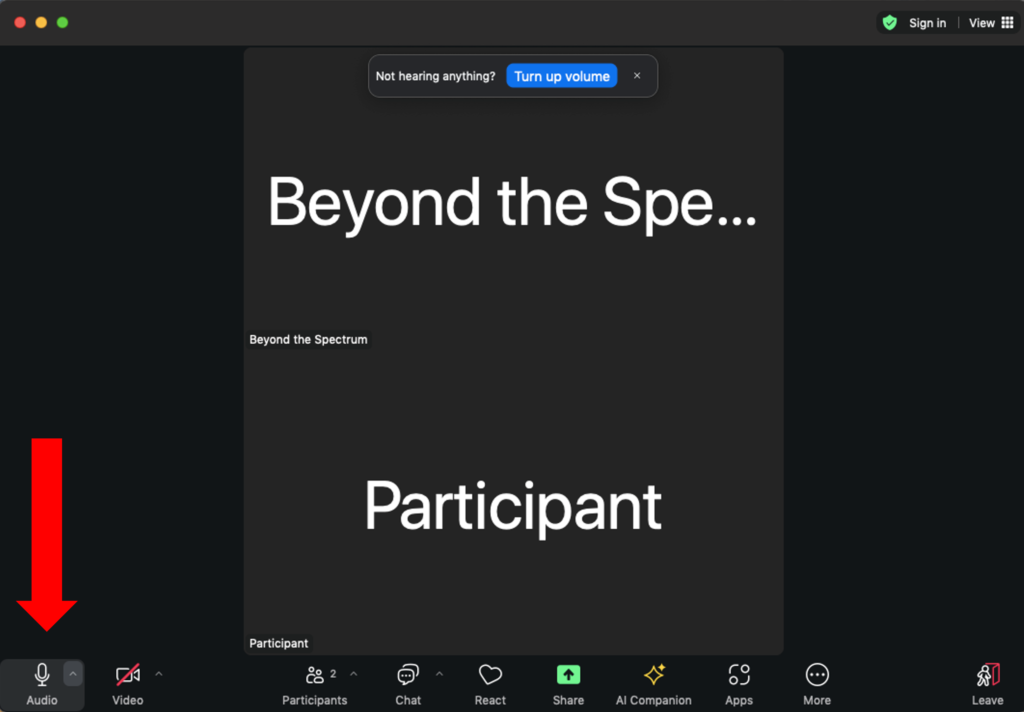
You can use this microphone button to turn your microphone on or off. Again, there is never any pressure to have your microphone on. If you would rather communicate via the chat (or not at all!) that is completely fine.


You might choose to mute your microphone when you are not speaking, so any background noise doesn’t distract the other participants.

Social story image 7 Zoom microphone
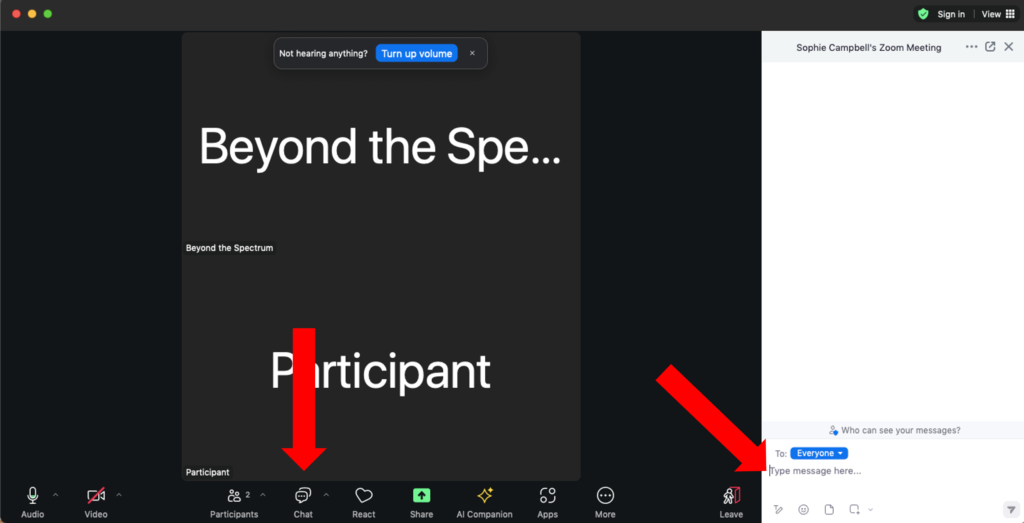
Social story image 9 Zoom chat

You can use the chat box to send messages. You can either message the whole group or use the dropdown to message someone privately.


This can be helpful if you have a question or concern for your lead or shadow writers, that you don’t want to share with the rest of the group.

At times you will be invited to share your writing.  It is entirely up to you. If you chose to share you might unmute and read it out, share in the chat for people to read on their own or ask your lead writer to read it out for you. If you share in the chat, make sure you have a copy saved for yourself, so you don’t lose it at the end of the session!


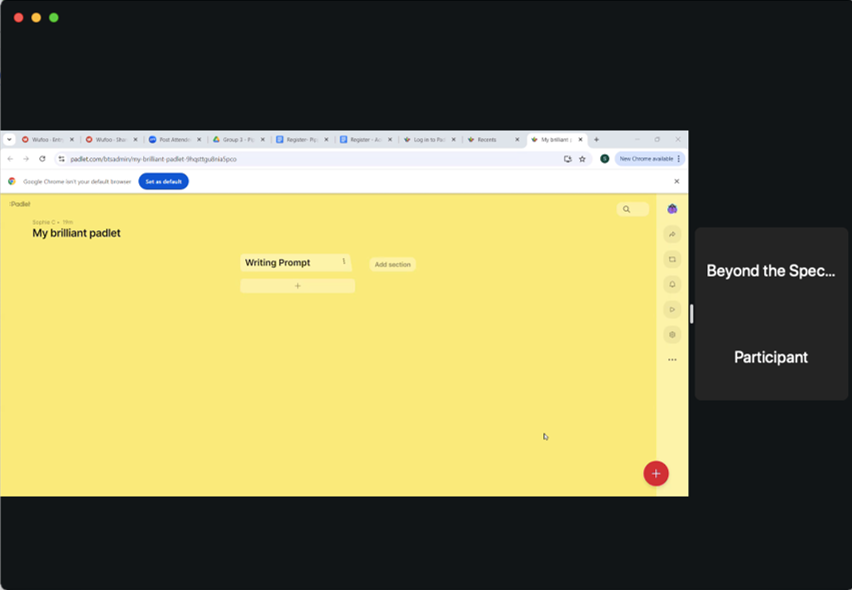
Your lead writer might invite you to share using Padlet. They should explain how to do this, but if you need more support you can check out our short guide to Padlet.

Social story image 11 Padlet

It’s always nice to receive feedback on your writing. When giving feedback to other participants, please make sure it’s supportive and kind. Some people may want constructive criticism, but not everyone will, so please avoid this unless it’s requested.


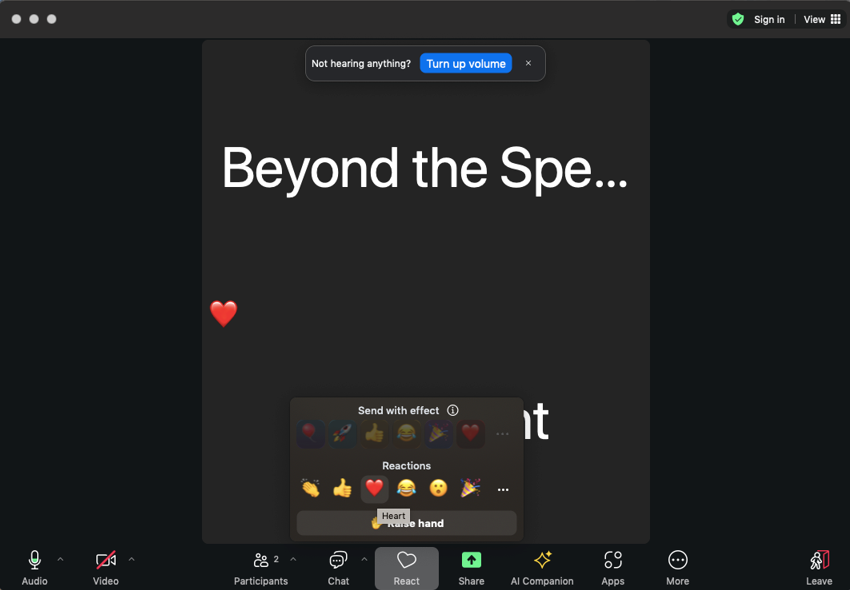
If you want to show support to your fellow participants when they share their writing, as well as using the chat you can click here to pick a reaction which will show up on the screen next to your name.

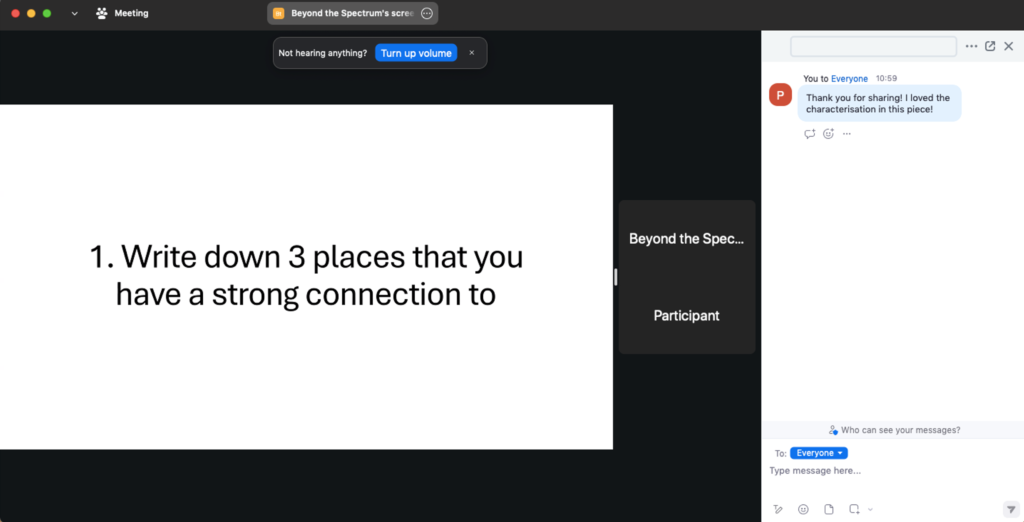
Sometimes your lead writer might share their screen to help them deliver a writing exercise. If you have any trouble seeing what they have shared, please let them know by speaking up or putting a message in the chat.

Social story image 14 screensharing
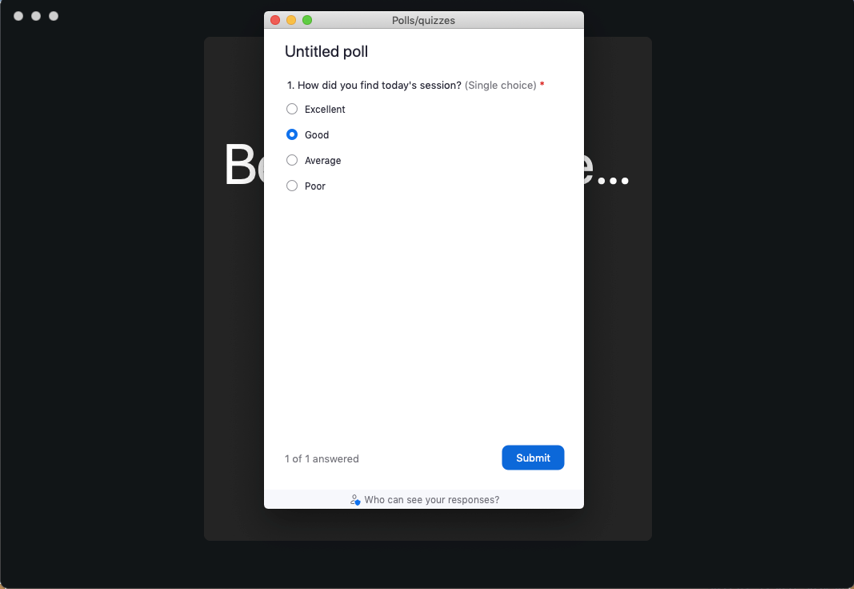
Social story image 15 Zoom Poll

At the end of the session you will be asked to give feedback via a poll. Please select which option best describes how you found the workshop then click submit.


This is really important as it helps us to evaluate the workshops!

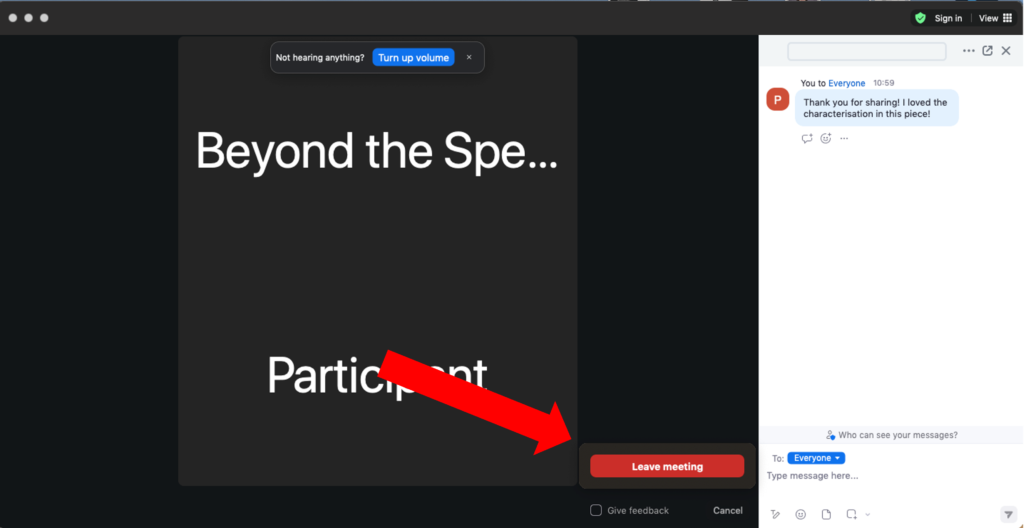
When the session comes to an end, you can leave the call by clicking this ‘Leave Meeting’ button. If you struggle to leave the lead writer might remove you from the call.

Social story image 11 Zoom poll

After the workshop

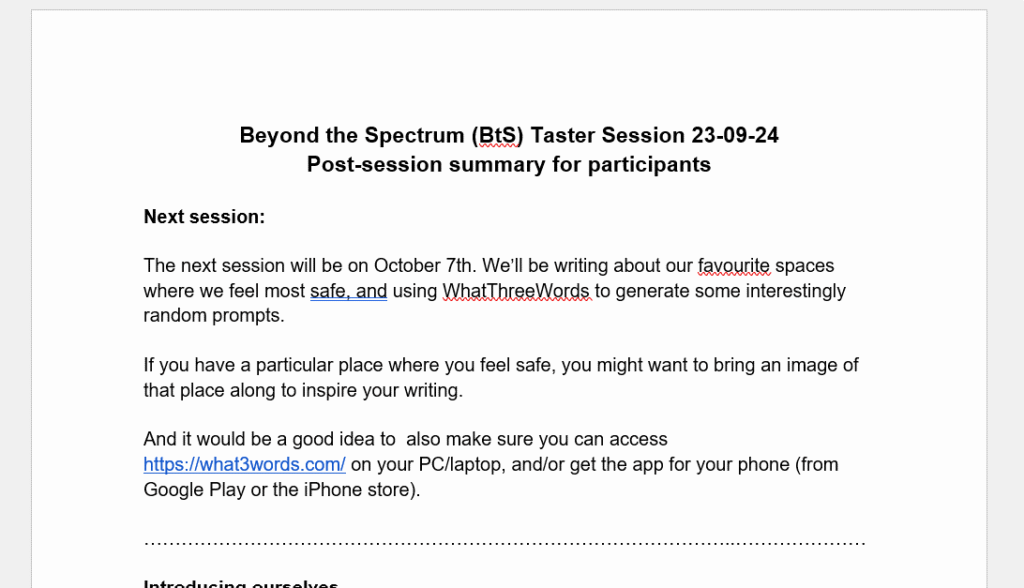
Social story image 17 session summary

After the workshop, your lead writer will send you a summary of the exercises from the session, and any important information that was shared. If you have any questions or concerns about the session, you can reply to the email.

If you have any questions or concerns between sessions that your lead writer cannot help you with, you can email Sophie at admin@beyondthespectrum.uk and she will get back to you as soon as possible.


If you miss a workshop, please don’t worry! The workshops are not chronological and if miss one you can just attend the next one as normal.

Social story image 2 email BTS team
Join Waitlist We will inform you when the product arrives in stock. Please leave your valid email address below.